Getting started
Quick start
Sign in once, then six steps per project. After that the QR codes look after themselves.
Sign in
Structoze›Plotmark›Account › Sign in. Your browser opens; sign in or create an account and start the 7-day free trial. Details
Click Settings
Structoze›Plotmark›Settings. This adds the QR Link parameter to Sheets and Project Information. Pick a colour and style, then click Save.
Copy your Shared Views link
Collaborate›Shared Views, share the view you want, then ⋯ › Copy link. Any web link works too. Details
Paste the link
Manage›Project Information › QR Link. Paste and click OK. Details
Mark the QR spot in your title block
Draw a box on the QR Placeholder subcategory in your title block family and load it into the project. Step-by-step
Click Update QR Codes
Every sheet with that title block gets its QR code inside the box. From now on, changes update automatically.
Export PDF
Click Export PDF. You get true-scale sheets in your page order; clicking the QR code opens the link. Details
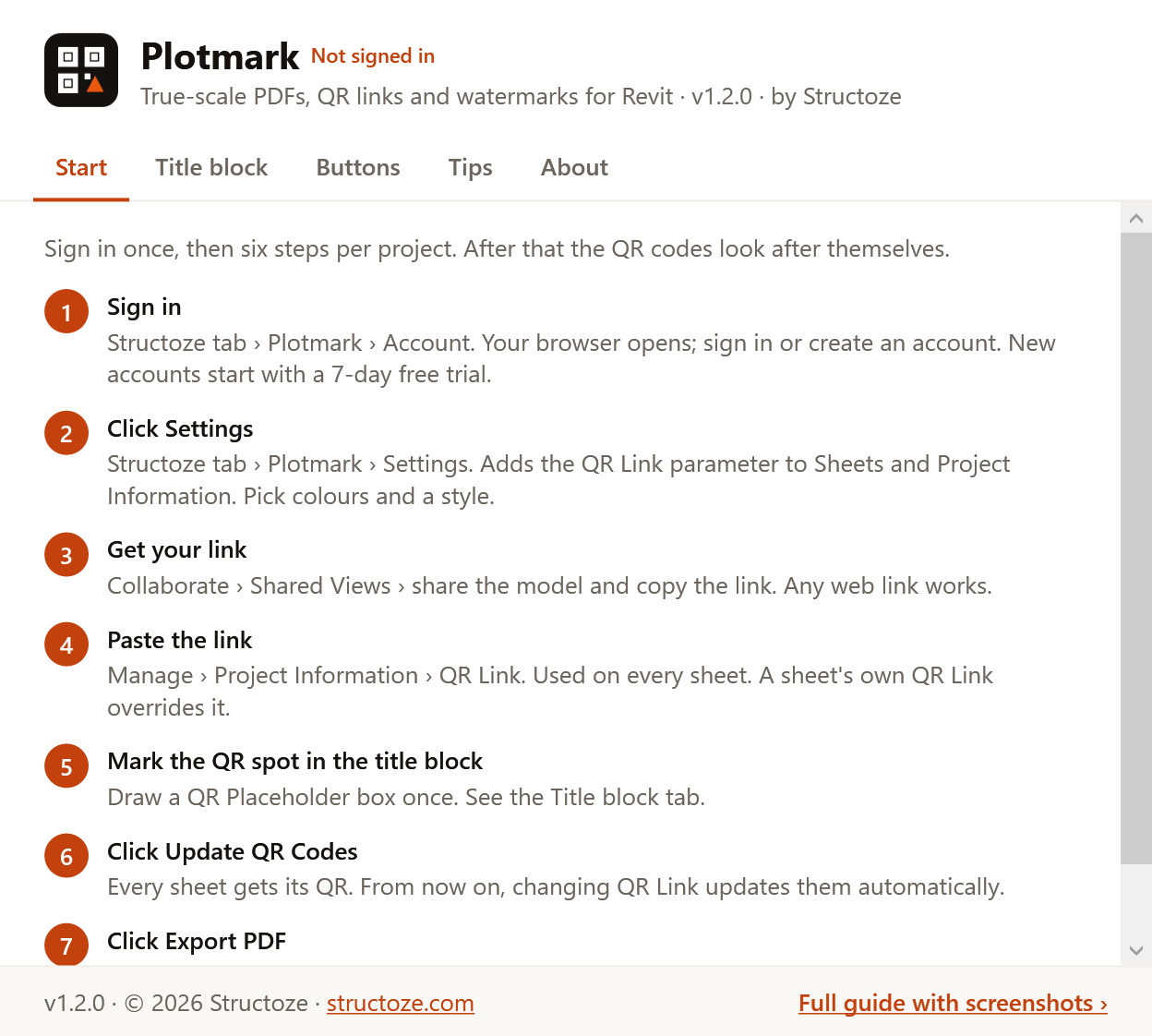
- 1These steps are also in Revit: Structoze›Plotmark›Help. Each tab fits on one screen.
- 2Opens this guide.
Something unclear? Tell us.