Getting started
Install
One installer covers every supported Revit version. It installs for your Windows user only and needs no administrator rights.
1. Download
Download Plotmark 1.2.0 .zip, 4.3 MB: installer, user guide (PDF), readme and licence
Downloads need a Structoze account. Sign in or create one, confirm your email, and the download starts. We also email you the link and install guide. Unzip the download, then run Plotmark-1.2.0-Setup.exe.
2. If Windows warns you
Plotmark is not code-signed, so Windows SmartScreen may stop the installer the first time. This is expected for unsigned software.
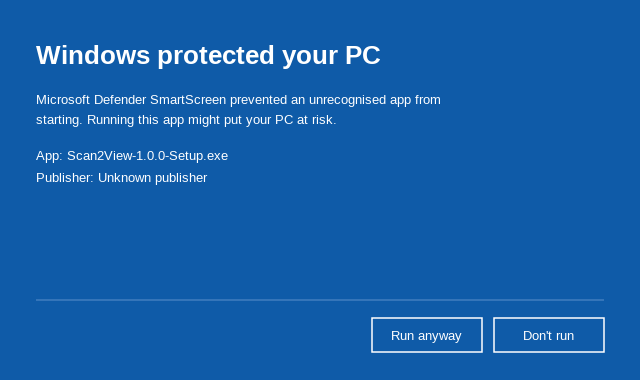
- 1On the first blue screen, click More info. The publisher and a new button appear.
- 2Click Run anyway.
3. Run Setup
Accept the licence
Read the Licence Agreement and click I accept the agreement.
Choose Revit versions
Setup lists the Revit versions it found on this computer, all ticked. Untick any you don't want.
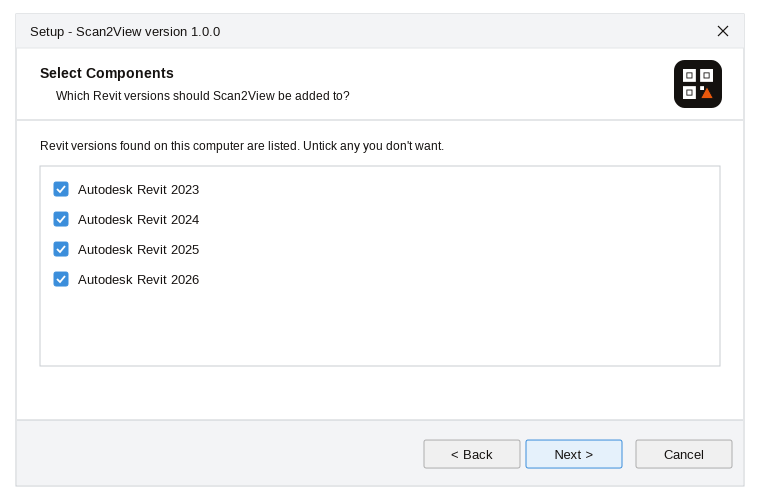
- 1Only Revit versions installed on this computer are listed. If none are found, all versions are offered.
- 1
Trust Plotmark in Revit
Leave this ticked. It does the same as choosing Always Load when Revit asks about an unsigned add-in, so Revit doesn't ask every time.
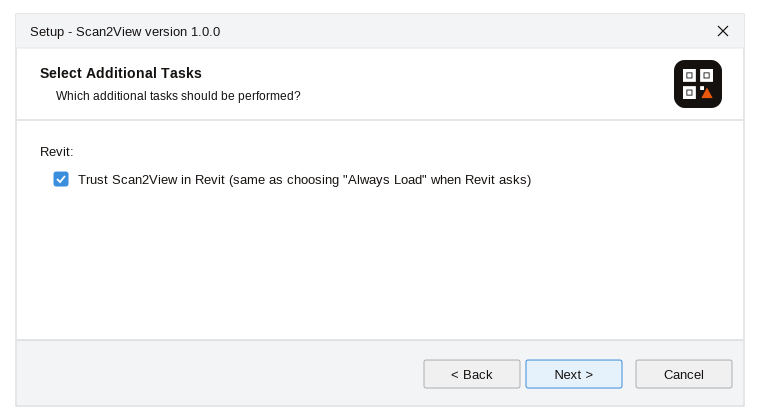
- 1Applies to your Windows user only, and uninstalling removes it. Untick it if you would rather answer Revit's prompt yourself.
- 1
Finish
Click Install, then Finish.
4. Check it's there
Open Revit and open any project. A new Structoze tab appears on the ribbon, with the Plotmark panel on it.

- 1The Structoze tab. Other Structoze tools will appear here too.
- 2The Plotmark panel with all its buttons.
What gets installed
| Add-in | %AppData%\Autodesk\Revit\Addins\YYYY\Plotmark\ and Plotmark.addin, for each Revit version you chose |
|---|---|
| Documents | %LocalAppData%\Programs\Structoze\Plotmark\ (licence, notices, uninstaller) |
| Your data | %LocalAppData%\Structoze\Plotmark\ (sign-in, QR images, shared parameter file, log), created on first use |
Updating to a new version
Run the new installer over the old one. Close Revit first. Your settings and QR codes are stored in your models, so nothing is lost.
Uninstall
Windows Settings›Apps›Installed apps›Plotmark›Uninstall. Close Revit first.
QR images already placed on sheets stay in your models as ordinary images. To remove them first, use Delete QR Codes before uninstalling.
Something unclear? Tell us.