Everyday use
Export PDF
Plotmark exports each sheet at its true size and scale, in the order you choose, and adds a real link on every QR code so clicking it opens the model. No Bluebeam or Acrobat printer setup needed for odd sheet sizes.
1. Choose sheets
Select sheets in the Project Browser (Ctrl- or Shift-click). Select nothing to export every sheet that has a QR code.
2. Export
Click Export PDF and choose how to save.
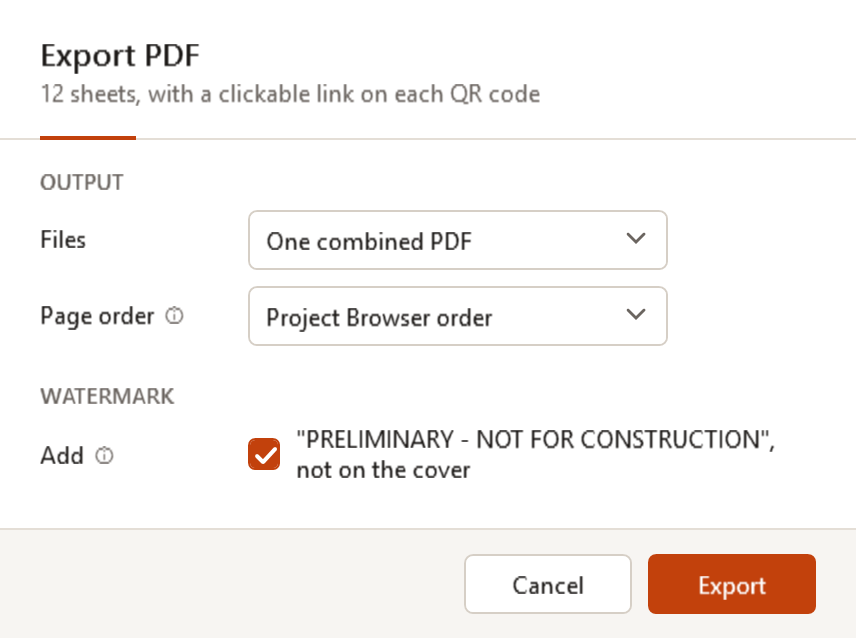
- 1Files. One combined PDF named after the project, or one PDF per sheet named number - name.
- 2Page order of the combined PDF: Project Browser order follows your Sheets tree exactly (sheet collections, folders and its Sort by setting), or by sheet number or sheet name (A2 before A10).
- 3Watermark. Ticked when your watermark is switched on; untick for a clean set this time.
Then pick a folder. Your choices are remembered for next time.
True size and scale
Each page is the size of that sheet's title block, printed at 100 % and centred, so a 1:100 drawing measures 1:100 on the PDF. A set can mix A1, A3 and custom sizes; each page keeps its own size. Revit's own PDF exporter draws the pages, so line weights, colours and fonts are exactly as Revit prints them.
3. Click the QR code
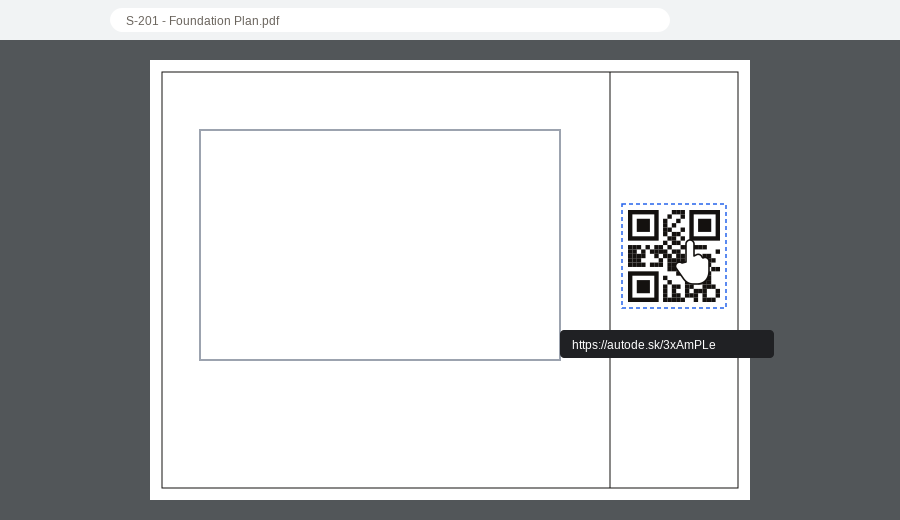
- 1Hovering the QR code shows a hand cursor and the link. Clicking it opens the link in the browser.
Something unclear? Tell us.